
This article was automatically translated by artificial intelligence. For accurate information, please refer to the original English version.
In this article, you will find the steps to set up the Partoo chat on your website.
2. Click on Add elements

3. Click on Embed Code then Embedded HTML code

4. Paste the script sent by Partoo into the dedicated area, then click Update
You received the script by email. If you can't find it, you can contact Partoo support.

5. Move the bubble wherever you want on your site
To select the bubble, click on it.

6. Fix the position of the bubble on your site.
You need to right-click then click on Fix position. This action fixes the chat bubble where you decided to place it.
Make sure to select the "Show on all pages" button to have the Partoo Chat on every page of your site.

7. Adjust the web chat size to W:600 and H:1000 (maximum height of your screen)
Ensure the widget container (the blue box in the editing page) is at least W:600 and H:1000 to make sure the opened modal is fully visible.

8. To edit the chat color or logo, you can click on Edit code

9. Replace the color reference with your own directly in the code snippet, as shown in the screenshot.

10. Replace the chat logo with the one you want from the 3 options:
message_logo_icon
message_bubble_icon
message_question_mark_icon

11. If you make changes, be sure to click Update

12. Once the Partoo chat is installed, click Save

⚠️ Due to the way Wix works, the Partoo chat will not appear as floating on the mobile view. You must fix the chat somewhere on the mobile site view to see it on mobile.
Set up the Partoo chat on mobile view
1. To set up the Partoo chat on mobile view, simply click the phone button at the top left.
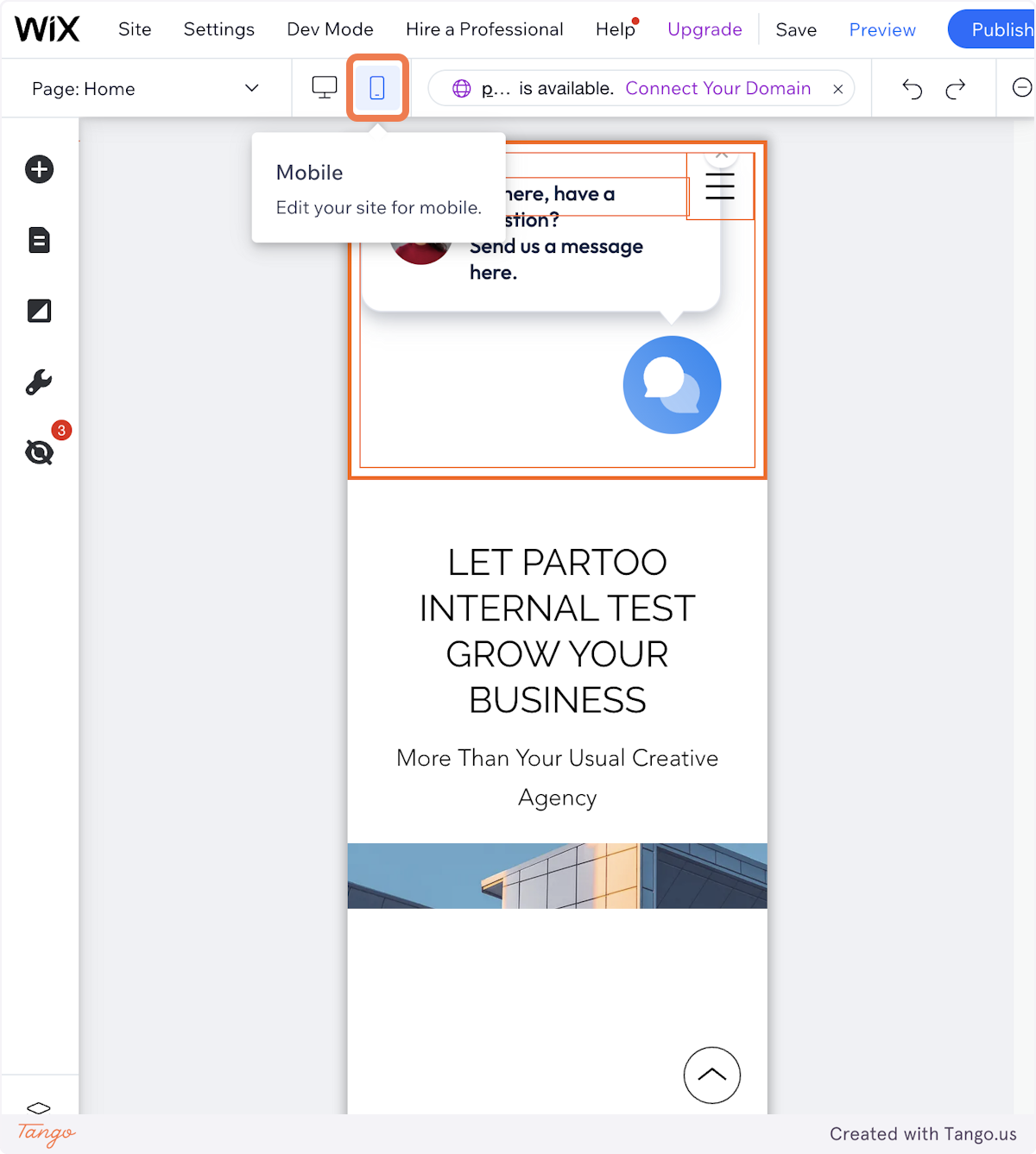
2. To move the chat, just click the settings logo.
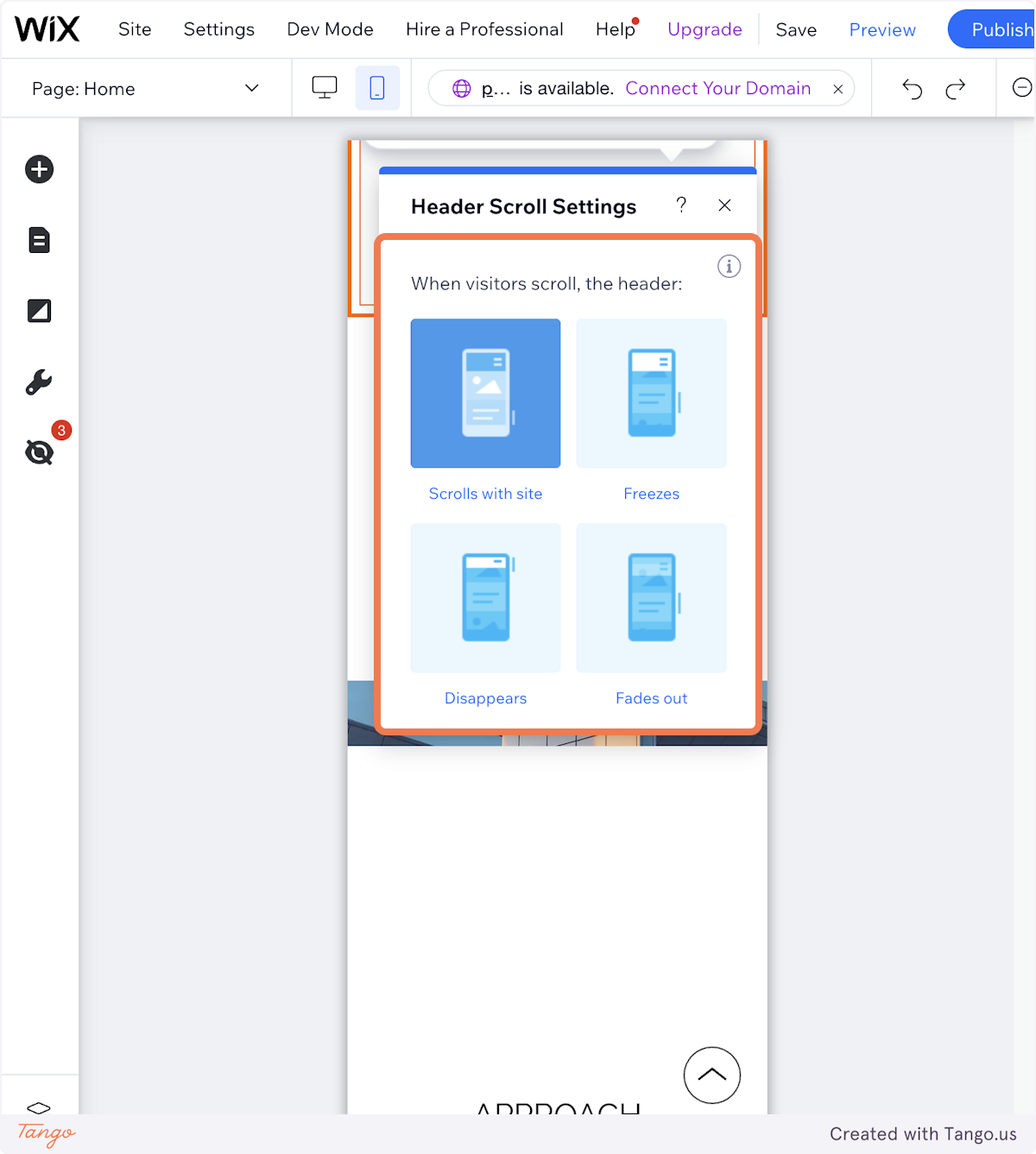
⚠ Note that mobile settings are different from desktop, and you cannot fix the chat position.
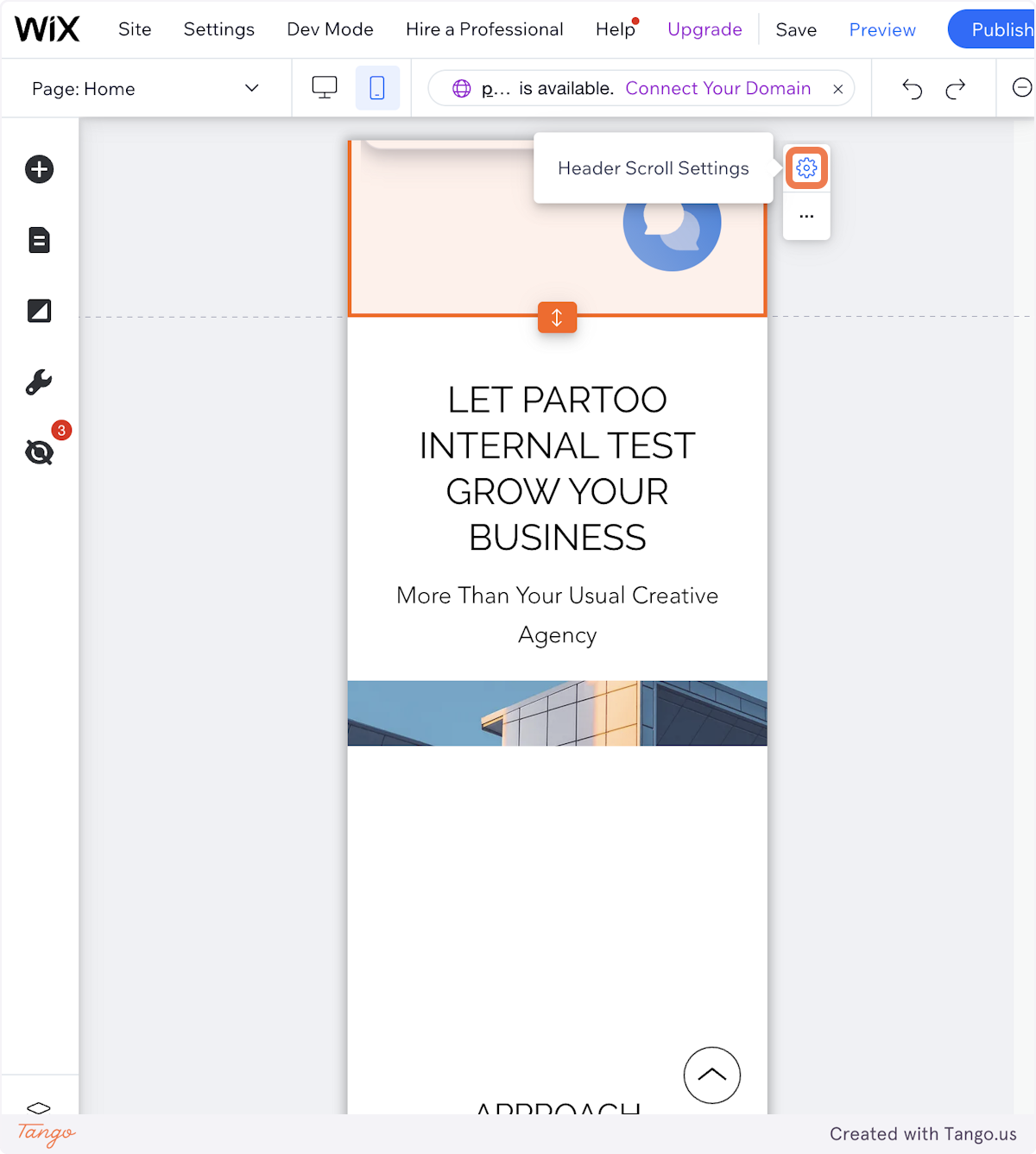
3. Select where you want to place the chat
4. Click "Publish" once everything is set up.
If you encounter issues setting up the Partoo chat, feel free to contact us directly via the small blue bubble at the bottom right of your screen.